Playwright CLI Tutorial: Browser Automation with Claude Code
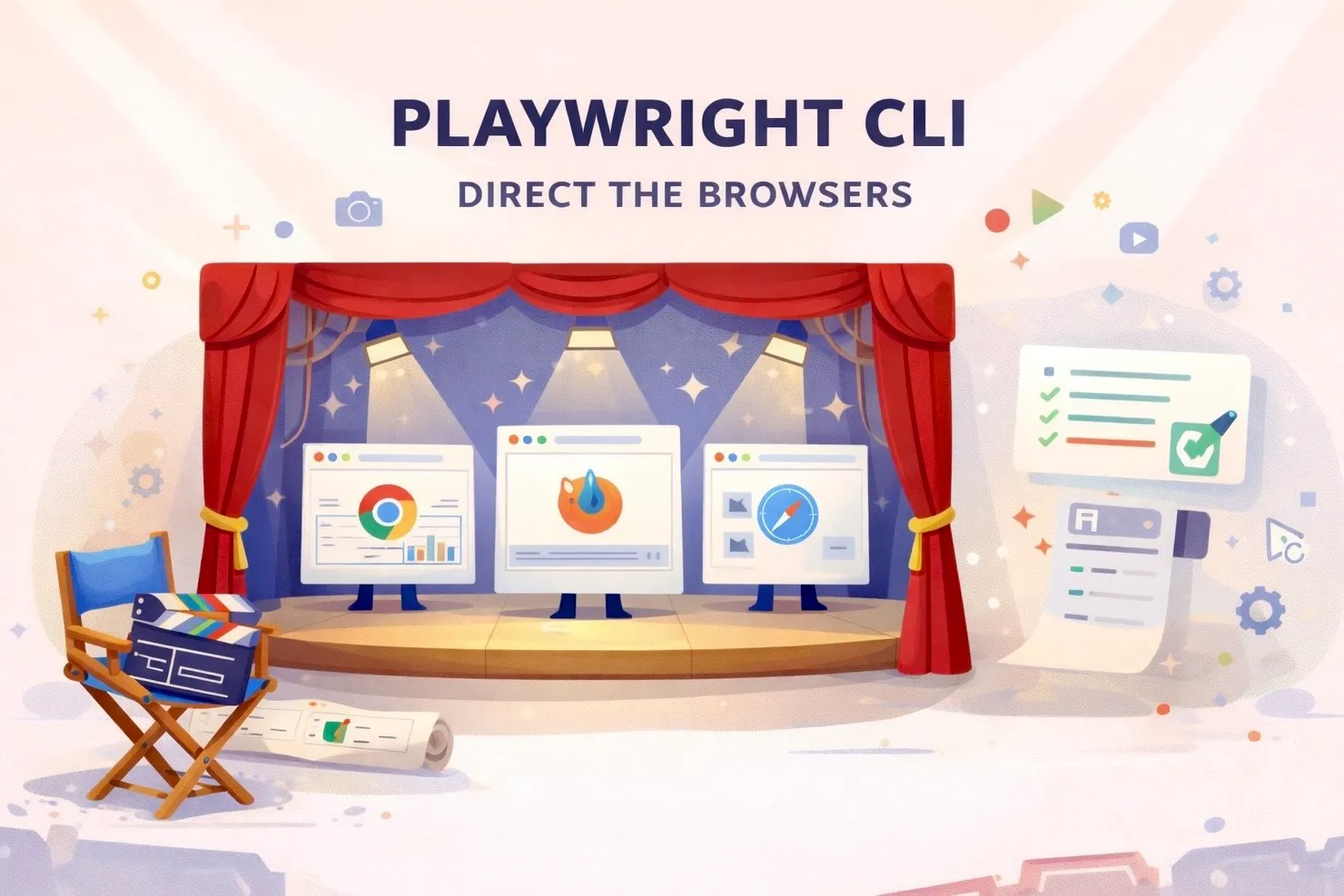
AI agents increasingly need to see the web — verifying a frontend change, scraping data behind a login, or running a repetitive click-through for us. In the past that meant standing up a full Selenium or Puppeteer project. Today Playwright ships its most-used features as a command-line tool, playwright-cli: no project setup, no npm dependencies, one line gets the job done. This article introduces Playwright itself, contrasts it with Puppeteer, explains why a separate CLI exists, clarifies its relationship with Playwright MCP, and finishes with four real-world scenarios using it alongside Claude Code.
The examples use Claude Code, but the same patterns work with any capable AI agent — Claude Desktop’s Cowork or Code, Codex, Copilot, Gemini CLI, Antigravity, and so on. Pick whichever you prefer.
What is Playwright
Playwright is an open-source browser automation framework released by Microsoft in 2020. It drives Chromium, Firefox, and WebKit through a single API and covers E2E testing, web scraping, screenshots, PDF generation, form filling, and virtually any browser automation task. Its core team came largely from Google’s Puppeteer project — they moved to Microsoft, redesigned the architecture from scratch, and kept the lessons learned while fixing Puppeteer’s long-standing pain points.
Playwright supports JavaScript/TypeScript, Python, Java, and .NET. It also ships an official VS Code extension, a trace viewer for debugging, and a report generator — the most complete browser-automation ecosystem available today.
Playwright vs. Puppeteer
Both drive browsers, but they aim at different targets. Puppeteer started as a Chromium-only, low-level API. Playwright was designed from day one to be cross-browser and to handle “wait for element” and “auto-retry” internally — things Puppeteer leaves to the user.
| Category | Playwright | Puppeteer |
|---|---|---|
| Maintainer | Microsoft | Google (Chrome DevTools team) |
| Browsers | Chromium, Firefox, WebKit | Primarily Chromium (Firefox experimental) |
| Languages | JS/TS, Python, Java, .NET | JS/TS only |
| Auto-wait | Built in | Requires explicit waitFor |
| Debugging | Trace Viewer, Inspector, codegen | Minimal |
| CLI tool | Yes (playwright-cli) | No official CLI |
Bottom line: for a new project there’s almost no reason to choose Puppeteer. If you already run Puppeteer on Chromium and it works, there’s no urgency to migrate.
Why playwright-cli exists
Doing a small thing with stock Playwright — say, “take a screenshot of this URL” — traditionally meant npm init → install @playwright/test → write a .spec.ts → run npx playwright test. That’s a lot of ceremony for one PNG.
playwright-cli targets exactly these one-shot needs. Its most-used features are exposed as subcommands you invoke via npx playwright <subcommand> — no project, no config file, no test:
playwright screenshot— capture a page (full-page, custom viewport, dark mode)playwright pdf— render a page to PDFplaywright codegen— record interactions and emit code in your languageplaywright open— launch a Playwright-controlled browser for manual explorationplaywright install— download browser binariesplaywright show-trace— open a trace file for debugging
This design matters for AI agents. Agents struggle with maintaining long-running session state, but excel at “run a command with clear inputs and outputs.” playwright-cli decomposes browser work into atomic commands — the agent fires one, collects the artifact (image, HTML, JSON), and reasons from there.
playwright-cli vs. Playwright MCP
Microsoft already ships Playwright MCP (a Model Context Protocol server that lets agents drive a browser over an extended session), so why ship a CLI too? These tools are complementary, not competing.
| Category | Playwright MCP | playwright-cli |
|---|---|---|
| Runtime model | Long-running server, step-by-step agent calls | One-shot command, exits when done |
| Token cost | High (DOM snapshot each step) | Low (just the output file) |
| Fits | Exploration, trial-and-error, unknown flows | Known flows, batch jobs, scheduled tasks |
| Scriptable | Hard (must run inside agent context) | Trivial (shell script or cron) |
| Reproducibility | Medium (agent decisions vary) | High (same command, same result) |
One line to remember: MCP to explore, CLI to freeze. When an agent first encounters an unfamiliar site, MCP lets it probe interactively. Once the flow is understood, capture it as a CLI command or small script — re-running it later costs no AI tokens. Example 4 below shows this pattern end-to-end.
Why the CLI saves tokens
Playwright MCP feeds the current accessibility tree or DOM snapshot back into the agent’s context after every step so the model can decide what to do next. A moderately complex page produces snapshots of several KB to tens of KB, and a dozen steps burn through a noticeable chunk of tokens.
playwright-cli flips that: the agent receives only “file path + a few stdout lines.” The actual page content lives on disk. When the agent needs to see the rendered page, it loads the screenshot multimodally — a one-time cost. When it needs to read the content, a short script can convert the page to compact Markdown or JSON and hand only the essentials to the model. Compressing information to the smallest useful unit before involving the LLM is the core token-saving idea.
Converting a page to Markdown for the agent
playwright-cli doesn’t offer a built-in --format=md, but a small script does the job — pull HTML with Playwright, extract the main content with @mozilla/readability, then convert with turndown:
// page2md.mjs — fetch a page, extract main content, convert to Markdown
// Usage: node page2md.mjs https://example.com > output.md
import { chromium } from 'playwright';
import { Readability } from '@mozilla/readability';
import { JSDOM } from 'jsdom';
import TurndownService from 'turndown';

const url = process.argv[2];
const browser = await chromium.launch({ channel: 'chrome' });
const page = await browser.newPage();
await page.goto(url, { waitUntil: 'networkidle' });

const html = await page.content();
const doc = new JSDOM(html, { url }).window.document;
const article = new Readability(doc).parse();
const md = new TurndownService().turndown(article.content);

console.log(`# ${article.title}\n\n${md}`);
await browser.close();
The Markdown output is typically 5–10% the size of the raw HTML, with ads, nav bars, and sidebars filtered out by Readability. The agent reads distilled content and token usage drops several-fold. Research, data aggregation, and summarization tasks benefit the most.
Install and first run
playwright-cli needs Node.js — verify Node.js 16+ (18 or newer recommended). Because every example uses npx, you don’t need to npm install up front; npx pulls the package automatically.
Check the version and list commands
# Show the playwright version (first run triggers an npm download)
npx playwright --version

# List every available subcommand
npx playwright --help
Install browsers
Playwright ships its own Chromium, Firefox, and WebKit builds (stored in ~/Library/Caches/ms-playwright/ on macOS, about 600MB total). To install them all:
# Install every default browser (Chromium, Firefox, WebKit)
npx playwright install

# Install only Chromium (smallest, most common)
npx playwright install chromium
Use your system-installed Chrome
If you’d rather skip the 170MB Chromium download, playwright-cli can drive the Chrome or Edge already on your machine via --channel. The examples below default to this approach; chromium, firefox, webkit, and msedge all work too.
# Use the system Chrome
npx playwright screenshot --channel=chrome https://example.com out.png

# Use the system Edge
npx playwright screenshot --channel=msedge https://example.com out.png

# Use Playwright's bundled Chromium (requires `install` first)
npx playwright screenshot --browser=chromium https://example.com out.png
Practical examples
Four scenarios, from a basic screenshot, through codegen recording, into agent-driven automation, and finally freezing the workflow as a schedulable script.
Example 1: automated screenshot verification
The most basic — and most useful — case: after a frontend change, confirm the rendered page looks right. The old routine was: switch to the browser, reload, eyeball, screenshot. Now Claude Code runs a one-liner for you.
The commands below capture https://example.com (and https://playwright.dev for the wait-for-selector variant):
# Full-page screenshot using system Chrome
npx playwright screenshot \
  --channel=chrome \
  --full-page \
  https://example.com home.png

# Mobile viewport (iPhone-ish dimensions)
npx playwright screenshot \
  --channel=chrome \
  --viewport-size=375,812 \
  --full-page \
  https://example.com home-mobile.png

# Wait for a selector before capturing (skip pre-hydration flashes)
npx playwright screenshot \
  --channel=chrome \
  --wait-for-selector="article" \
  https://playwright.dev home-ready.png
Pair this with Claude Code: after a CSS change, ask Claude to run the command and read the screenshot multimodally to confirm the result matches the intent. Compared to switching windows yourself, you save attention-switching cost — the most expensive resource in a deep-work session. For more rigor, pipe the PNG through pixelmatch against a baseline to catch visual regressions.
Example 2: record user flows with codegen
codegen is Playwright’s built-in recorder. Running it opens two windows: a normal browser where you click around, and the Playwright Inspector which transcribes every action into code in the language of your choice.
For example, recording a search on https://playwright.dev:
# Open the recorder against playwright.dev, emit JavaScript
npx playwright codegen \
  --channel=chrome \
  --target=javascript \
  -o search.spec.js \
  https://playwright.dev

# Emit Python instead
npx playwright codegen \
  --channel=chrome \
  --target=python \
  -o search.py \
  https://playwright.dev

# Persist login state (cookies saved to auth.json after recording)
npx playwright codegen \
  --channel=chrome \
  --save-storage=auth.json \
  https://playwright.dev
The recorded script looks like this — the Inspector automatically prefers semantic locators (getByRole, getByText) over brittle CSS paths:
import { test, expect } from '@playwright/test';

test('search playwright docs', async ({ page }) => {
  await page.goto('https://playwright.dev/');
  await page.getByRole('button', { name: 'Search' }).click();
  await page.getByRole('searchbox').fill('screenshot');
  await page.getByRole('link', { name: /Screenshots/ }).first().click();
});
What codegen is really good at
- No manual selector hunting. Playwright picks the most resilient locator and avoids fragile CSS paths.
- Instant replay. Hit Resume in the Inspector to verify what you just recorded.
- Multi-language output.
--targetsupports javascript, python, java, csharp. - Session persistence.
--save-storage/--load-storagekeep you logged in across runs.
Is codegen enough for real E2E tests?
Most developers ask this on first exposure. Short answer: Playwright itself is great for E2E tests, but codegen output is only a first draft.
Using the recording as-is has obvious gaps: no assertions (expect()), no Page Object structure, flaky under A/B tests or dynamic content, no error handling. The right workflow is to use codegen as scaffolding, then refactor (yourself or with Claude Code) — extract reusable helpers, add assertions, split test cases, handle waits and failure modes.
Codegen is particularly well-suited to AI collaboration. Claude’s weakest move is “guess the right selector on a page it can’t see.” codegen handles exactly that piece — you record a rough draft, the model turns it into a proper suite. Each side does what it’s best at.
Common use cases
- Learning Playwright’s API by clicking around and watching the generated code.
- Exploring an unfamiliar site’s DOM — faster than F12 DevTools.
- Collaborating with QA/PM — hand over recorded, replayable steps.
- Seeding AI with a rough draft that Claude Code refines into a real test.
- Scoping a scraper — record a manual pass first, then batch-ify.
Example 3: drive an existing browser for social accounts
This pattern mirrors OpenClaw, browser-use, and Claude Computer Use: you log in manually (including 2FA) in your own browser; the agent attaches and takes over from there. You never hand credentials to code, captchas aren’t a problem, every session cookie matches normal usage, and anti-bot heuristics are far less likely to trip.
The key primitive is the Chrome DevTools Protocol (CDP). Launch Chrome with --remote-debugging-port and Playwright attaches via connectOverCDP:
# Launch Chrome with a debugging port and a dedicated user-data dir.
# Then log in to the site you want to automate inside this window.
# macOS:
/Applications/Google\ Chrome.app/Contents/MacOS/Google\ Chrome \
  --remote-debugging-port=9222 \
  --user-data-dir=/tmp/chrome-agent-profile

# Windows: "C:\Program Files\Google\Chrome\Application\chrome.exe" --remote-debugging-port=9222 --user-data-dir=C:\tmp\chrome-agent
# Linux: google-chrome --remote-debugging-port=9222 --user-data-dir=/tmp/chrome-agent-profile
Then a small Node.js script lets Claude Code attach and drive the session. The snippet below is illustrative — in practice you’d have Claude generate it on demand:
import { chromium } from 'playwright';

// Attach to the already-logged-in Chrome.
const browser = await chromium.connectOverCDP('http://localhost:9222');
const context = browser.contexts()[0];
const page = context.pages()[0];

// Use it like any normal Playwright page.
// Examples: archive your own posts, organize bookmarks, export DMs.
await page.goto('https://www.threads.net/@your-handle');
const posts = await page.locator('article').allTextContents();
console.log(posts);

// Do NOT close the browser — you'd kill the user's session.
await browser.close();
Things to watch out for
- Anti-bot detection. Facebook, Instagram, and X profile mouse trajectories and timing. Aggressive volume still gets flagged as a bot.
- Terms of service. Most social platforms prohibit automation. Stick to personal-use cases (archiving your own data, bulk export, cleanup) and steer clear of commercial abuse or mass broadcasting.
- CDP port security.
--remote-debugging-portbinds to localhost by default — don’t expose it publicly. - Friendlier targets for experimentation. Threads, Mastodon, or a Discord admin panel you own are far safer playgrounds than FB/IG.
Example 4: freeze the workflow into a script to save AI tokens
This example closes the loop on the MCP-vs-CLI discussion above. Use MCP interactively to figure the flow out; once confirmed, ask the AI to write a Playwright script and never pay tokens for this task again. The model becomes a “one-shot compiler” for automation.
Take “daily homepage health check” as an example: screenshot, verify key elements, emit a report. The script Claude Code generates might look like this:
// daily-check.mjs — daily homepage health check
import { chromium } from 'playwright';
import fs from 'node:fs/promises';

const browser = await chromium.launch({ channel: 'chrome' });
const page = await browser.newPage();

const start = Date.now();
await page.goto('https://example.com', { waitUntil: 'networkidle' });
const loadTime = Date.now() - start;

// Verify key elements are present
const articleCount = await page.locator('article').count();
const hasHeader = await page.locator('header').isVisible();

// Save screenshot
const today = new Date().toISOString().slice(0, 10);
await page.screenshot({ path: `reports/${today}.png`, fullPage: true });

// Write JSON report
const report = { date: today, loadTime, articleCount, hasHeader };
await fs.writeFile(`reports/${today}.json`, JSON.stringify(report, null, 2));
console.log(report);

await browser.close();
Schedule node daily-check.mjs via cron or GitHub Actions and it runs daily with zero model involvement. The same shape works for:
- Batch-generating OG social share screenshots for every article page
- Monitoring layout changes (store a baseline screenshot, diff via
pixelmatch) - Scraping analytics dashboards into CSV on a schedule
- Weekly site-wide link health reports
The mental shift here matters: the AI’s role moves from “executor on every run” to “one-time author.” The code itself is the asset — running it a hundred times costs the same as running it once, and the model only steps in again when the workflow genuinely changes.
Conclusion
Playwright, as the next-generation browser automation framework, fixed Puppeteer’s long-standing pain points around cross-browser support and auto-wait. playwright-cli packages the most common features behind a single command — a great fit for Claude Code and similar agents. Playwright MCP and playwright-cli aren’t alternatives: explore with MCP, freeze with CLI.
The four examples above — automated screenshots, codegen recording, attaching to an existing browser for social accounts, and freezing a flow into a script — are all immediately applicable. For web developers, Playwright is excellent for real E2E tests; codegen is a solid first draft that you or an AI can refactor into a proper suite. The goal is to make “letting the AI see the web” a routine part of your daily workflow.